
This post may contain affiliate links, meaning I make a commission if you purchase through my links, at no extra cost to you. Disclosure here.
I wouldn’t say I’m the most organised person when it comes to my digital life, but I like to think I’m getting there.
I had a rude awakening when I was looking for an important document. It was just such a time-consuming struggle to find it. Thanks a lot, past me.
It was at that moment I decided to make a change.
It’s not easy when you’re faced with tens of thousands of pictures, and you feel like you must keep every single one of your kids.
Or when you have endless unread emails.
But I started doing small habits, and I’m sharing them with you today. They have really helped me to get a handle on my digital life and to hopefully become digitally clutter-free.
Keep reading below or watch the video:

Declutter laptop files
Oftentimes, as a digital creator, my laptop can be so full of files, images, videos, and designs I created in Canva. So I really needed to get a handle on that.
I made this decision after scrolling through my folders looking for images, and they were all labelled “Untitled (1)”, “Untitled (2)”, “Untitled (3)” and so on. It was such a pain to find what I was looking for. Not only was it frustrating, but it was also taking so much of my time.
This was a really good lesson for me to start labelling my files correctly.
I have this business I’m trying to run while raising two children, so I can’t afford to waste a lot of time doing tasks like this. I could spend that time focusing on things that matter most to me—either in growing my business or in raising and caring for my children.
Nowadays, I give files a name that’s descriptive of what they are actually about. Also, I try to put them in folders. It’s not perfect and it doesn’t need to be. I’m still working on this.
My goal is to be able to find things easier when I’m looking for materials for my courses or the freebies I’m offering, like my free declutter checklist.
So I created a system for myself. Now everything I download onto my laptop goes into the regular “Downloads” folder.
Then, every week or month—whenever I remember and get a chance—I go through the folder and sort out the files so they don’t pile up again.
I will delete what I don’t need anymore, especially the files I downloaded “for future reference.” I can probably download them again anyway. So I don’t have to keep all of them on my computer unless it’s something really important—something I reference a lot, in which case I keep it.
Then I sort the things that I want to keep and put them in folders. This might sound so basic, but I just didn’t do that before.
And it’s not about creating “Folder 1”, “Folder 2”, and “Folder 3.” It’s about naming those folders in a specific way—like “YouTube channel videos” or “blog materials”—so I can easily find them.
Desktop icons
My desktop can get so full of little things. I stopped downloading everything onto my desktop since now I’m using the “Downloads” folder.
One other reason I did this was because I didn’t want a cluttered desktop. I don’t want the first thing I see when I open my computer to work, to be a whole mumble jumble of things that overwhelm me. That’s not my goal.
My goal is to have things as streamlined as possible. I want to feel inspired and calm when I’m creating or working on my business. I don’t want to feel stressed out, and a desktop full of icons is stressful to me.
Now I only keep a few key folders on my desktop. I categorise everything else into folders that I stashed away and are not on the main desktop.
Delete old content
I think becoming digitally clutter-free can be especially hard as a digital creator. The pictures we take, the videos we film, and the content we create can pile on so easily and quickly.
So another thing I have been doing is deleting some of the older YouTube videos that I’ve created. Videos can take up so much space, especially when filmed with newer models of cameras.
I do keep a few key clips here and there that I want to reuse in future videos, but for the most part, once the video is live on YouTube, I now delete it.
And I’m trying to turn this into a habit so that I go through them often. I want to make sure that my laptop doesn’t get full of big files that take up all my storage space.
Family Calendar
We have also decided to have our family calendar synced up to streamline and simplify everything.
With my first child going to school, there are events happening, school emails, and things we need to keep track of. And having a toddler as well, that means appointments and nursery events. All these can be a lot and the whole family calendar can get pretty hectic.
If I don’t have a way of keeping everything in one spot so both my husband and I can access it, it’s just going to be a mess.
So when I receive a school email with an event, I open Google Calendar on my phone, and I add it there. I do the same with letters with doctor appointments. Any scheduled event goes straight in there.
The calendar is synced on my and my husband’s phones and desktops. This way, we can both see any changes instantly.
This has been a game-changer. All that back and forth—”Oh, when is that appointment? When are they going to do this? When is family reading at school?”—is gone. All we need to know is now in one place and easily accessible.
Use Notion planning
I also started using an app called Notion, their free version, and it’s helped me so much in both my business and my personal life as well, as I use it for both.
I’ll be honest, I wasn’t sure how to use it at first, so I took a Notion class on Skillshare (Disclaimer: Skillshare is a sponsor of some of my YouTube videos).
If you haven’t heard of it yet, Skillshare is the biggest online learning community, with hundreds of classes on many different topics. It’s brilliant.
The Skillshare class I took about Notion was by Ali Abdaal, the productivity expert. It really made me look at my own systems and how I can optimise them. I honestly feel like I’ve actually gained back some of my time investing time in this class.
One of my favourite ways I use Notion is to create my “YouTube system”. This way, I can easily keep track of what videos I’m filming and when I’m editing them.
I also really love my “Resonate Board”, which was inspired by Ali’s class.
On the Resonate Board I keep track of things that inspire me. Whether it’s podcasts or books, I will put them on there with little notes I have or things that stood out to me. I find this to be a really good way to have everything in one spot, as sometimes I want to reference a book, or I think, “Oh, I know I read that somewhere,” and I can just quickly search in my “Resonate Board” and see where that came from.
This can be a big one—whether it’s unread emails, junk emails, or everything in between. Figuring out how to even get started can feel really overwhelming.
What I did for some of the older emails was to straight up either delete them or mark them as read. This way, they’re no longer a notification I have to tackle. I thought that if they’re really old emails that I haven’t even opened, then I probably don’t need them.
I also tried to do some habit stacking, something I learned in the Atomic Habits book.
Habit stacking basically means looking at the habits you currently have and adding something else on top. This is what makes building a new habit a lot easier.
Regarding the emails, I asked myself, “What are some moments in my day when I’m just aimlessly scrolling?” We all have those—we just open Instagram and scroll, scroll, scroll. So I thought, “Can I use some of that time to tackle some emails?” Whether that’s replying to them, deleting some old ones, or marking them as read.
My goal was to reach inbox zero, and I am happy to say I’m there! It’s not an easy process, especially if you have thousands of emails, but building these tiny habits really makes a difference.
Now, when I open my email app, I only see two or three emails that actually need my attention. Goodbye to the thousands of email that used to make me feel overwhelmed and behind.
Oh, and while I was doing this, I took the opportunity to click unsubscribe from newsletters and emails that were no longer of interest to me. That way, I can prevent unnecessary clutter from coming in again.
Photos
I also started decluttering photos on my phone—another big one!
I had so many random screenshots. And because I create content for Instagram, I take a lot of pictures and videos. All of those can take up a lot of space.
Now, I try to go through them regularly and delete anything outdated or unnecessary.
One trick I saw (I’m not sure who came up with it, but I’ve seen it a few times) is to take advantage of the “memories” or the “this time last year/two years ago” notifications. Just go through those “memories” from years back and delete any photos from that day that you don’t need—like old screenshots or pictures that don’t really matter anymore.
It’s a small thing, but over time, it makes a big difference!
Delete unused apps
I’ve also gone through the apps on my phone because these can also clutter our phones. Sometimes I download an app to just give it a try. But then I realise it’s not for me—and I forget to actually delete it. So now, I make it a habit to clear them out.
I even deleted some social media apps that I wasn’t really using, like TikTok. I kept it for the longest time, thinking, “Well, I’m a content creator, I should keep up with it.” But honestly, there’s only so much we can keep up with these days. So I decided TikTok just isn’t for me—at least not right now.
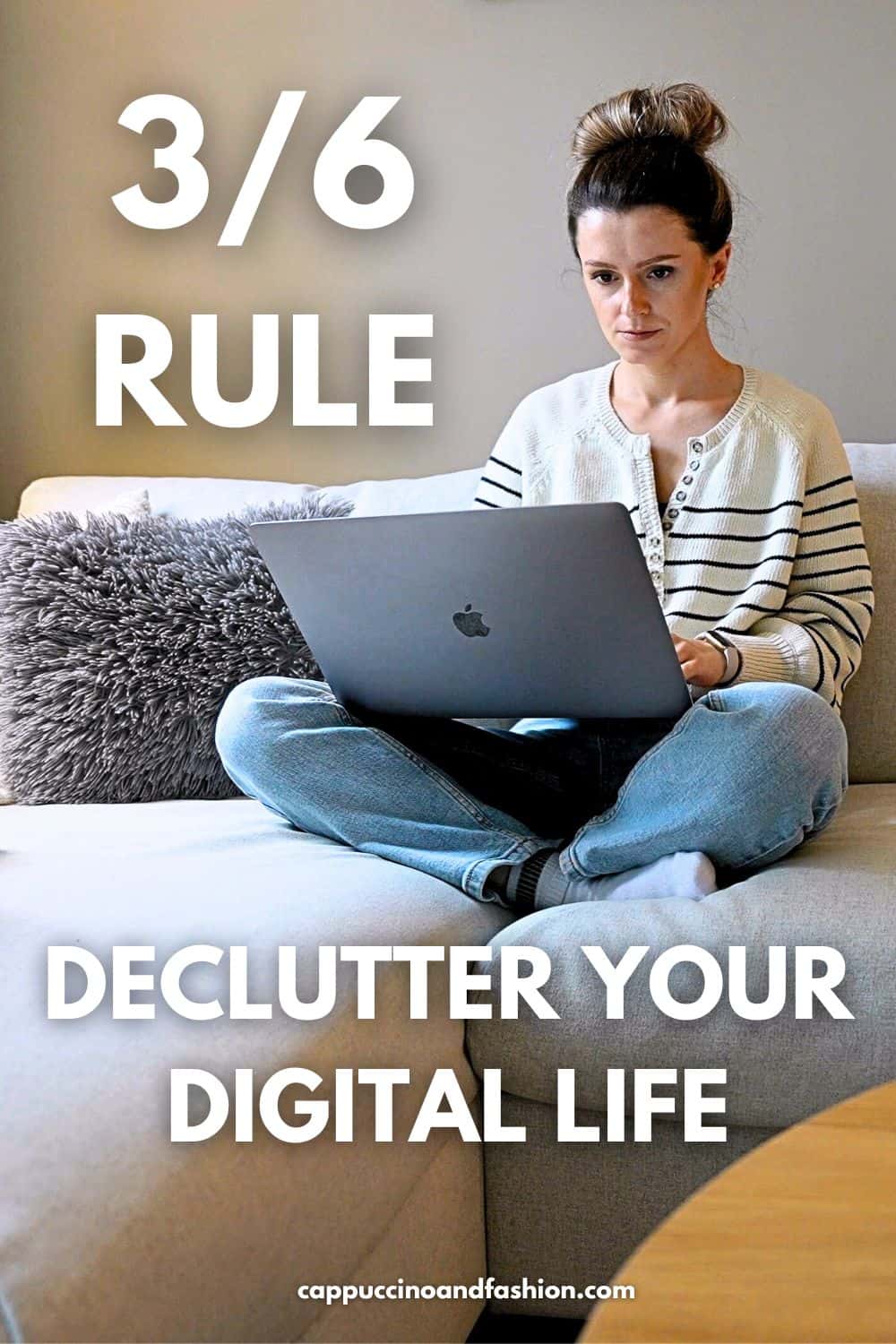
When it comes to apps, I like to use the 3–6 Rule. I check which apps I’ve used most often and which ones I haven’t opened in a long time. If I haven’t used an app in the past three to six months—or if I don’t even remember what it’s for—it’s gone!
Remove app notifications
This is something I did a long time ago that I feel has simplified a lot of my digital space. It’s also something that protects my mental space too.
I don’t get notifications apart from a few for the most important things. Some of the only notifications that are turned on are for messages from my husband, the school, the doctors, for example. Obviously I want to have these coming in.
Other things like WhatsApp groups, school groups, email notifications, or social media notifications—including Instagram likes and comments—are turned off. I do not need to have them coming through on my phone all day, every day.
Notifications can be very distracting. They pull my focus and make me want to go on my phone again and again. And I don’t want to be interrupted when I’m playing with my kids, for example, or when I’m filming a video. I don’t want my attention to be constantly drawn to my phone.
Track digital app subscriptions
One thing I’ve also started doing is to keep on top of the digital app subscriptions. I used to find it so hard, especially because of the free trials.
For example, for Fitbit Premium, there’s a six-month trial. But in six months, when the trial ends, I will have forgotten to cancel it and it will renew automatically unless I keep on top of it.
One way I have found really helpful is to add a reminder in my calendar whenever I start a new trial for anything. So I’ll add a reminder, for example, “Cancel Fitbit trial” on, the day before it expires.
This way, whenever the trial days or months have passed, I can see it in my calendar. That gives me the opportunity to assess, “Is this something I actually want to pay for or not?”
It’s really helpful to have such reminders. Otherwise, we end up paying for many services and apps that we just don’t really use or need.
I hope you found this article helpful. If you’d like more minimalist tips, I also wrote “10 Minimalist Habits” sharing what I’ve incorporated into my life, you might find it useful.


Leave a Reply